
Category Archives: Uncategorized

Split Screen Configuration on Lowrance – Tech Tuesday


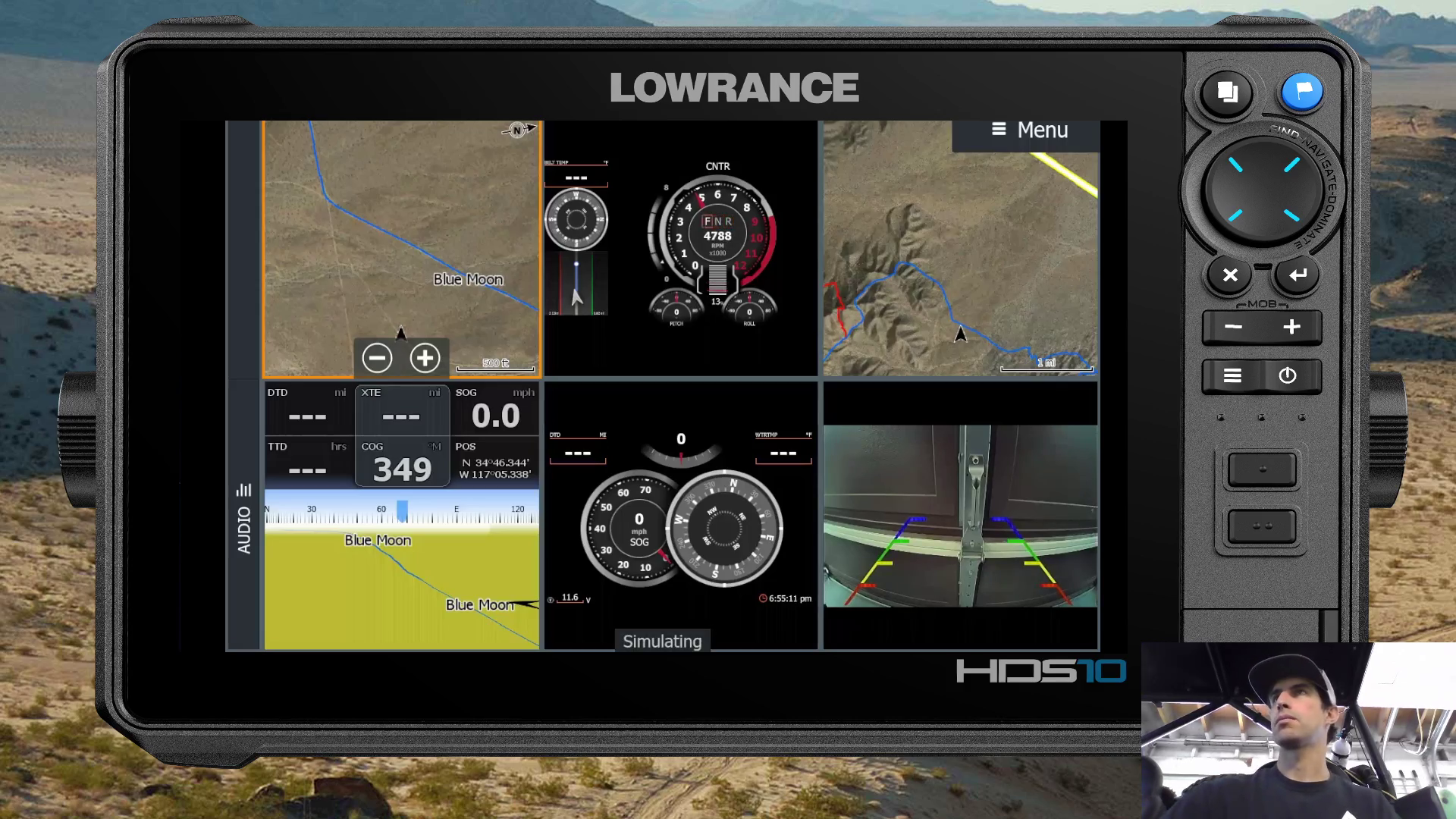
Multi GPS Map Split Screen on Lowrance

These in depth videos have been a long time coming. As we branch out beyond the navigational basic you will start to realize the full features and flexiblity of the lowrance system in your off-road vehicle.   In past videos I have shown you how to do various navigation functions as well as installing a reverse camera, and UTV Belt temp sensor.  Today, I’ll show you how to do it all.. at the same time! With a multitude of configuration options, you’ll be able to customize the layout of your lowrance to fit you specific needs including the option for showing multiple GPS Maps at the same time,  while displaying a video feed or customized instrumentation panels. Check out the tutorial here:
https://www.youtube.com/watch?v=cY_noovhq9U?sub_confirmation=1
Reverse / Backup Camera on Lowrance HDS Off Road GPS

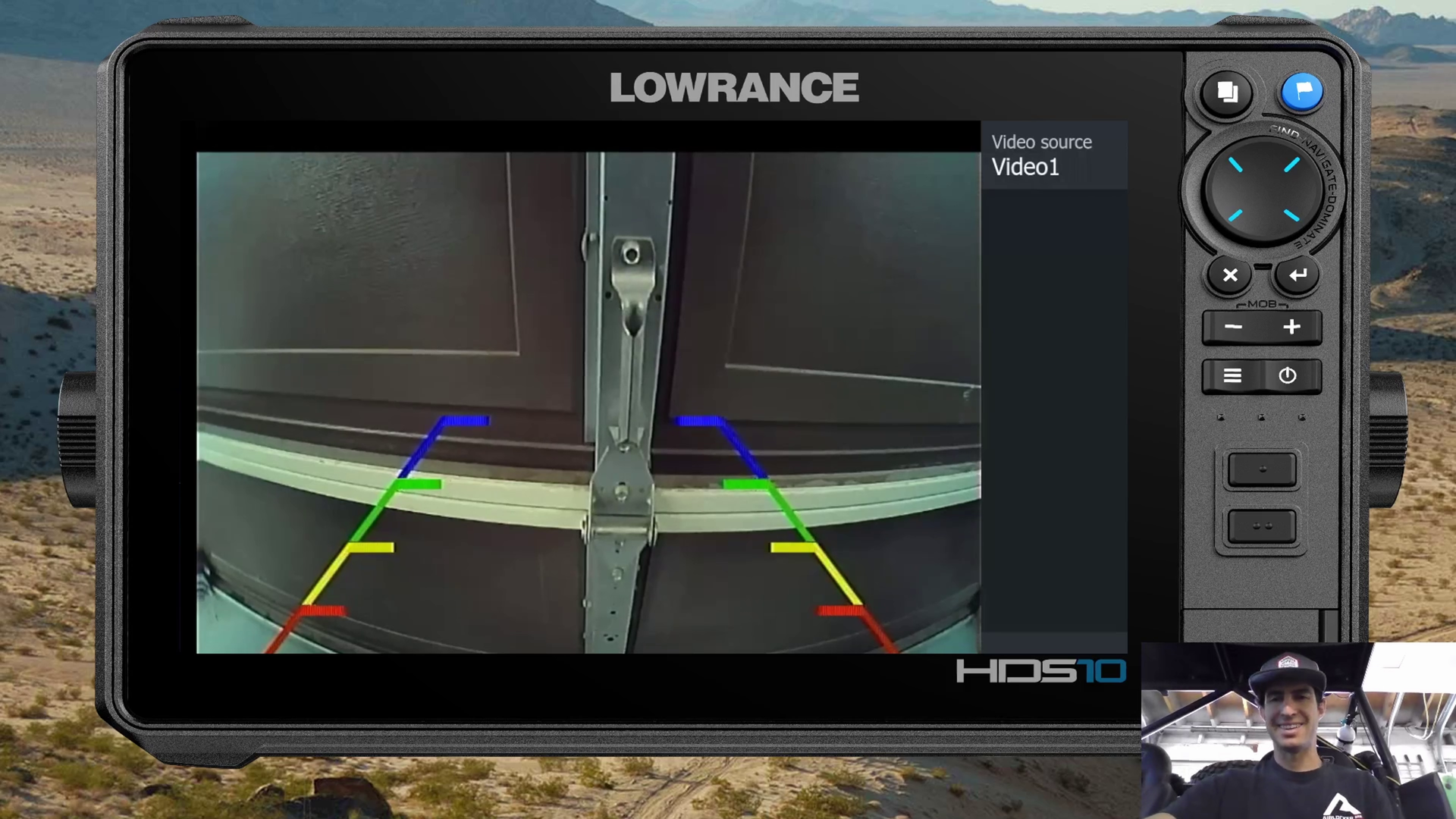
Lowrance Off Road Reverse Camera

Sometimes it’s the simple things that go a long way. When you’re buckled up, your 5-point harness has you secured in your vehicle and then… you can’t see to back out of camp? Even mirrors aren’t always effective with chase lights, radiator, spare tires and who knows what else blocking a rear view on your UTV, prerunner, ultra 4 car or other go-fast desert machine. Today we take a break from talking about GPS maps and explore an add-on option to your Lowrance HDS to add a rearview camera.
Check it out now on the RuggedRoutes YouTube Channel at:
https://www.youtube.com/watch?v=Ls–QxLkWPI?sub_confirmation=1

Remotely Import & Export USR & GPX GPS Map Files on Lowrance Off Road GPS

GPS Map remote uploads and downloads on Lowrance off road GPS

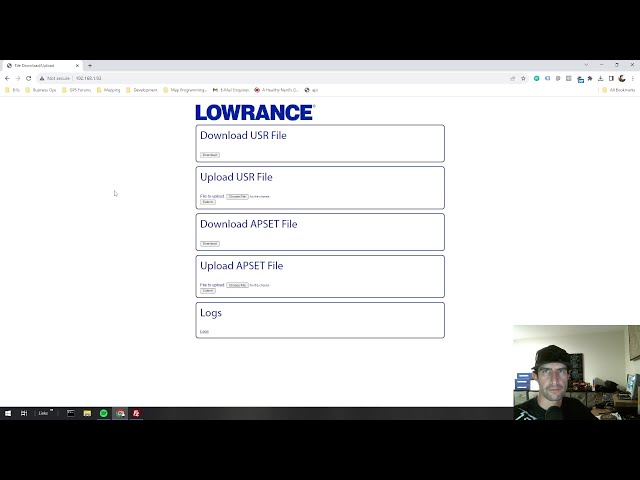
Some of you  techie folks out there might sit back and think.. This was a thing the whole time?!? In this video I how to remotely access your Lowrance HDS or Elite FS files over a wifi network. I explain 2 methods of wifi connections. I also cover 2 methods for transfering USR files. One is the embeded browser application / webserver. The second method is great for copying general files including using GPX Files and is done through an FTP connection. The first method directly exports and imports your USR data to/from the Waypoint Routes and Trails database over a connection through your web browser. When Connecting directly to the GPS as a hotspot, the IP Address to acces through the browser or FTP is 192.168.76.1 .  For the local IP when connecting the GPS to your local network, check the Network Info panel as shown in the video. This can be a conveneint way to move files to your GPS map files to and from your GPS without an sd card. There are varying scenarios where this could be useful. This was demonstrated on a Lowrance Elite FS 7 with the San Bernardino National Forest Map Card Inserted, but can also be done on HDS Pro series as well as many other previous generations of Lowrance Off Road GPS’s.
Check out the You-Tube video at: https://www.youtube.com/watch?v=yMQpclYl1QU?sub_confirmation=1

Also be sure to check out Rugged Routes on Instagram at: https://www.instagram.com/ruggedroutes/?hl=en